
Introduction
In this article we will be walking through how to add VBA Excel Buttons to improve your worksheets.
The VBA Excel Button
Button can make our lives easier by letting us choose certain text that we have in the list.
We have different types of buttons namely: Shapes Button, Form Control Buttons, ActiveX Control Buttons and Option Buttons.
Creating Macro Buttons using Shapes
We can have a stylish appearance by using a Shapes Button. We can customize is by choosing a shape, color, and font type.
Steps in using shapes as a button:
- You need to **insert a shape** in your worksheet.

- Go to **insert tab** then go to **Illustration** then **Shapes drop-down** then you can now **choose a shape** (in this case, we will choose rectangle).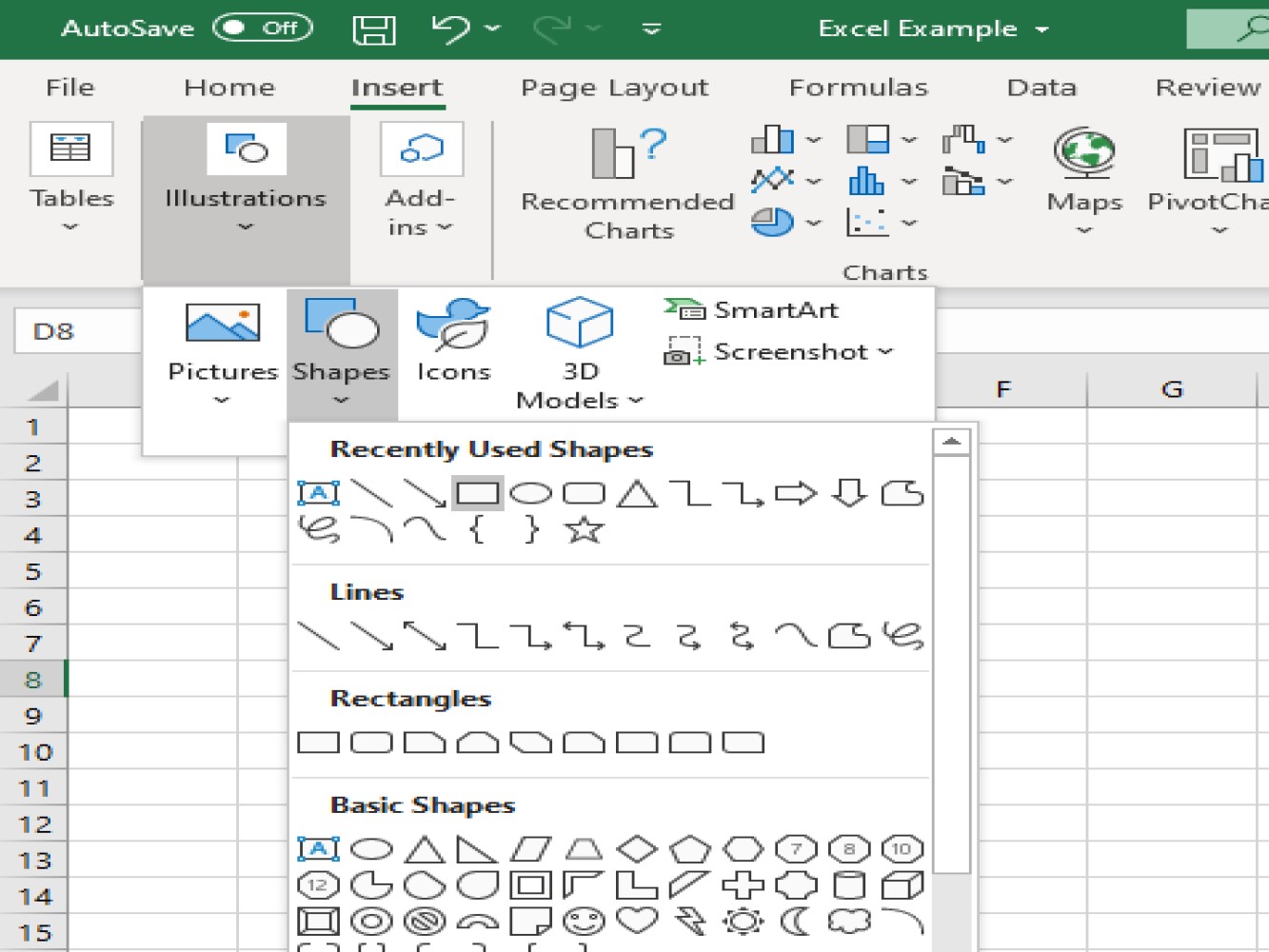
- We can rename the shape into what kind of button we are going to create. **Right-click on the button** then click **Edit text**. You can also do it by **double-clicking** the shape.

- We can also rename the shape into what specific kind of button we will create.
We can rename the button in two different ways.
- hovering your cursor to the button and do ***right-click***, then choose ***edit text*** then input the desired name.

- hovering your cursor to the button then ***double-click*** on the shape.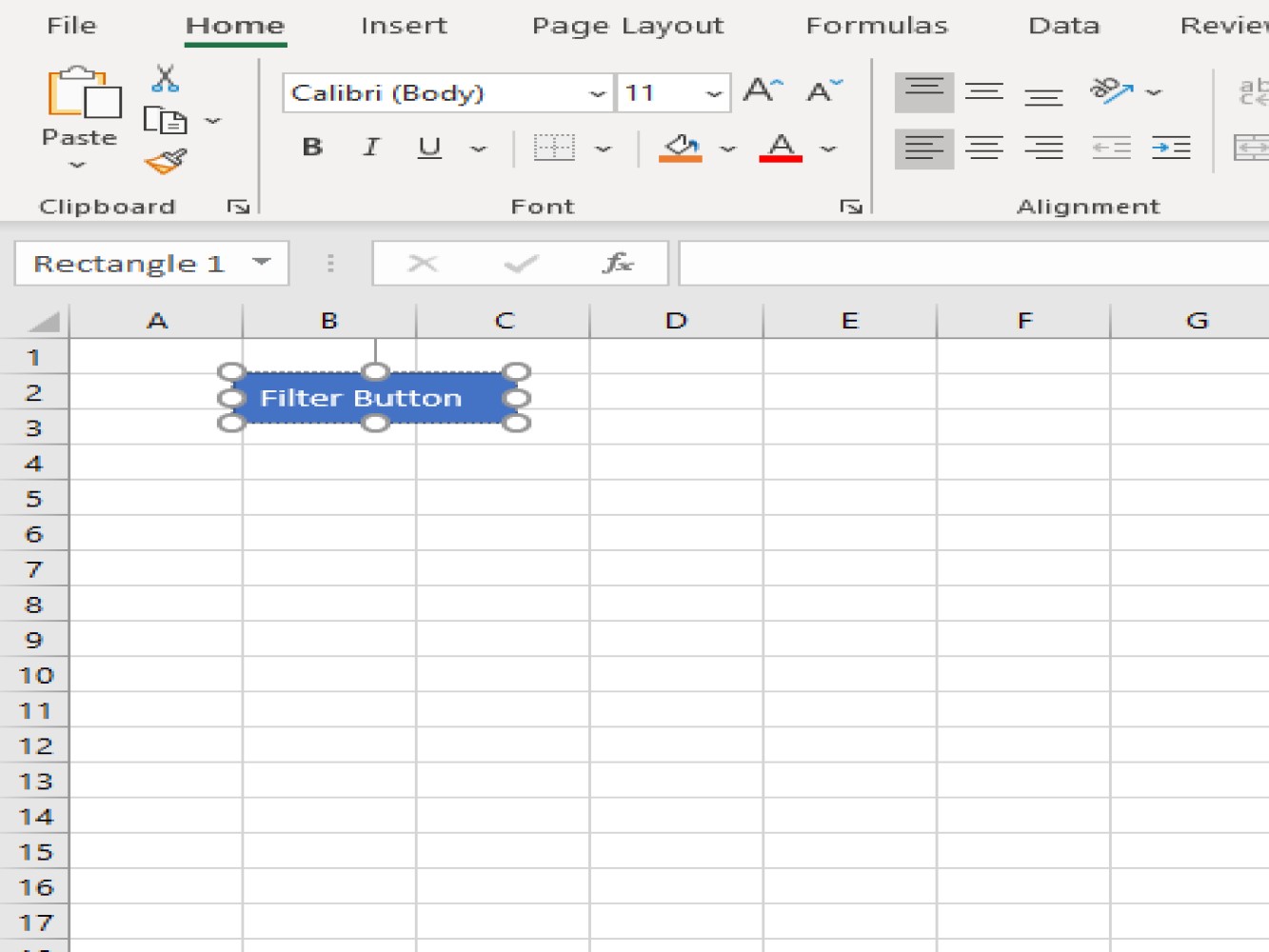
Assigning macros to the button
Steps to assign a macro:
- Right-click on the shape, then click **assign macro**.

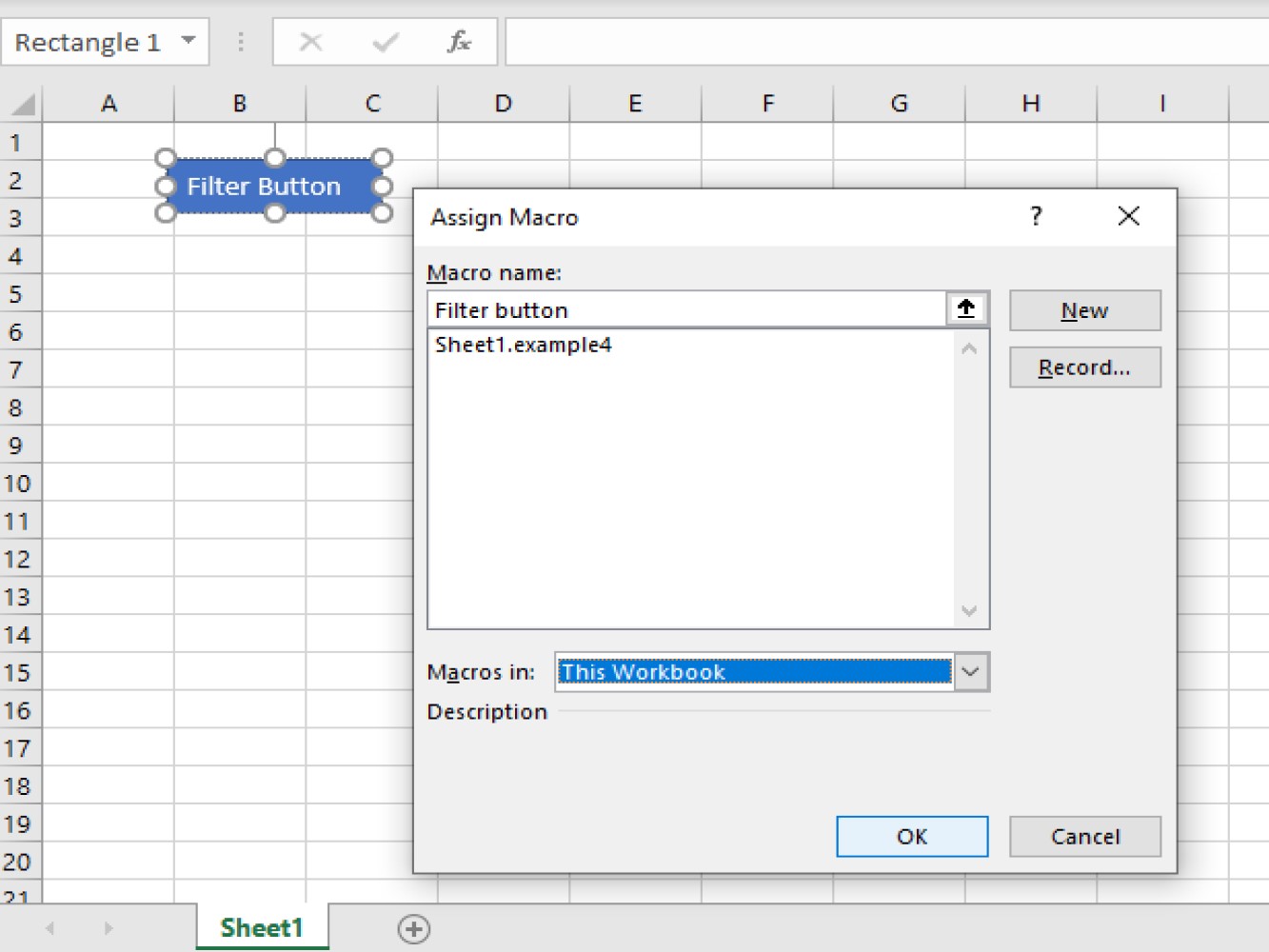
- **Rename the macro** then choose **This Workbook** on the *macros in* dropdown then click **Ok** to save changes.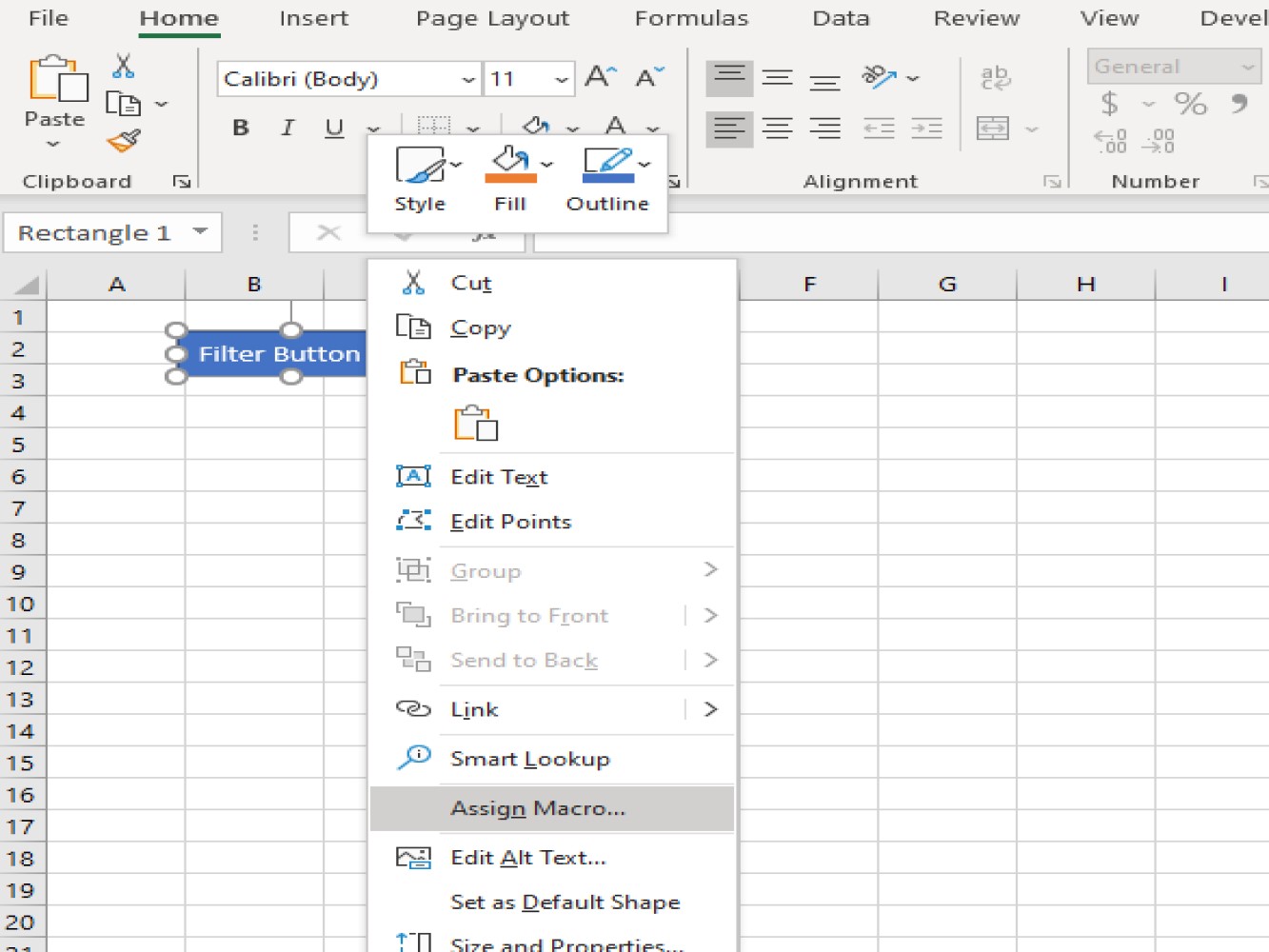
Creating Form Control Buttons
Shapes button and form control button have the same steps in setting-up. The difference between the two is the appearance of each button: the shapes button is stylish while form control button is a plain button. We can only change the font type, font-size, and font color.
Steps in creating a form control button:
- Go to **developer's tab** on your ribbon,

- Then choose **insert**.

- After clicking insert, a box will show then choose **form controls**.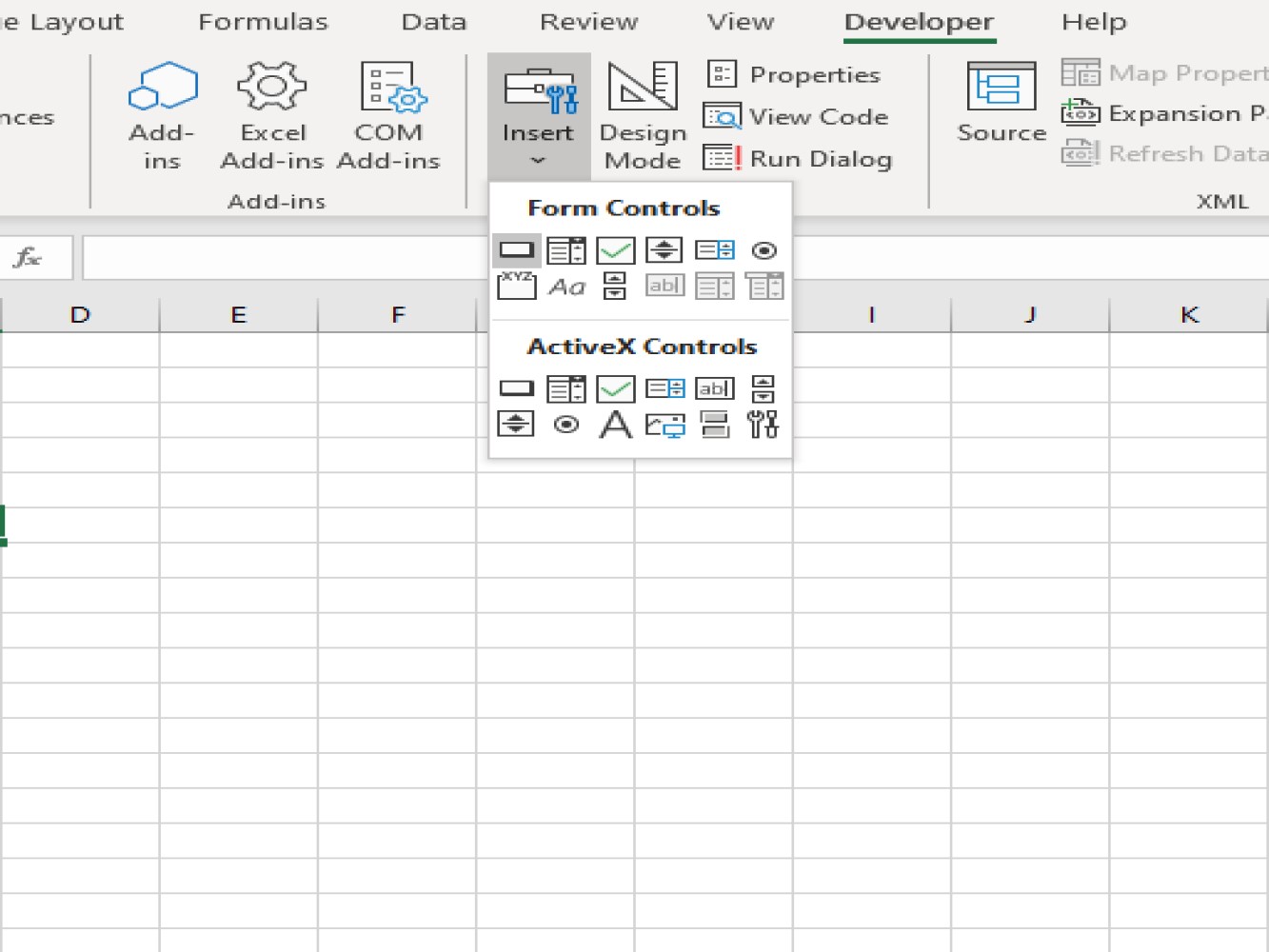
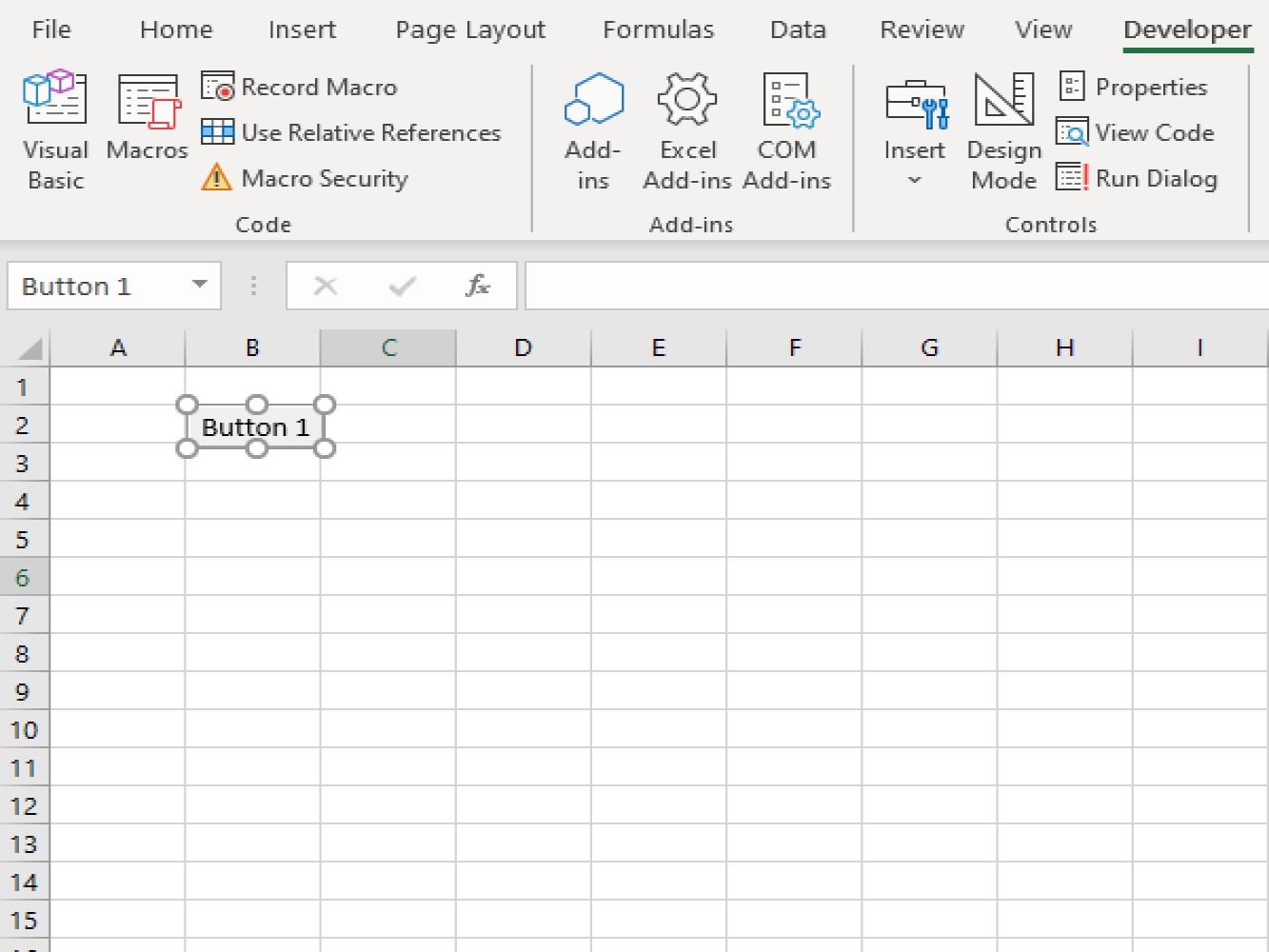
This will create the form button and it will now show on our worksheet.
Creating ActiveX Controls Button
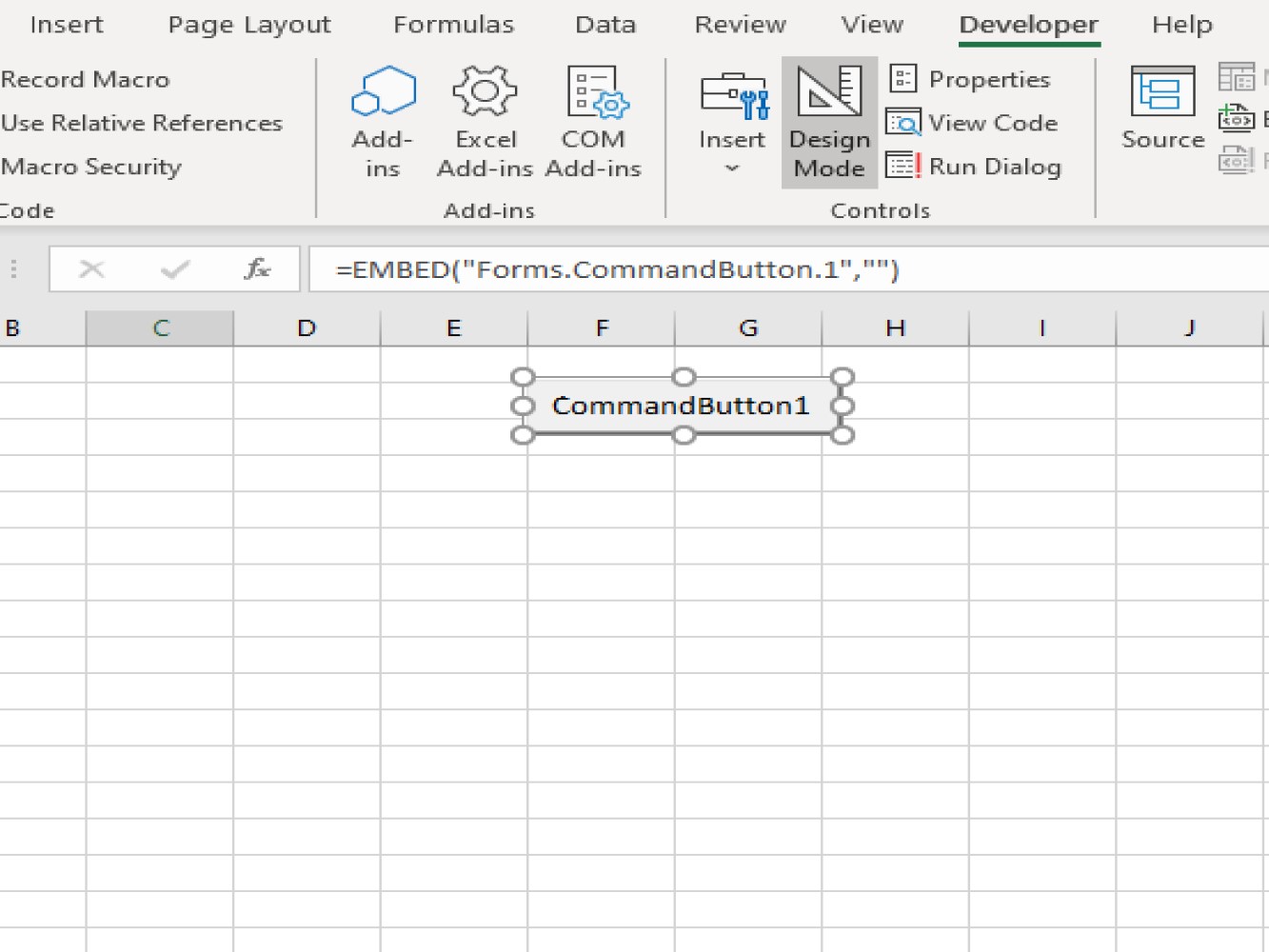
With ActiveX Controls, we have more options when formatting the button. We can now change the color of the ActiveX Controls button. We are required to add a macro code on it so we can run it in the active worksheet. The code will be inserted by going to view code.
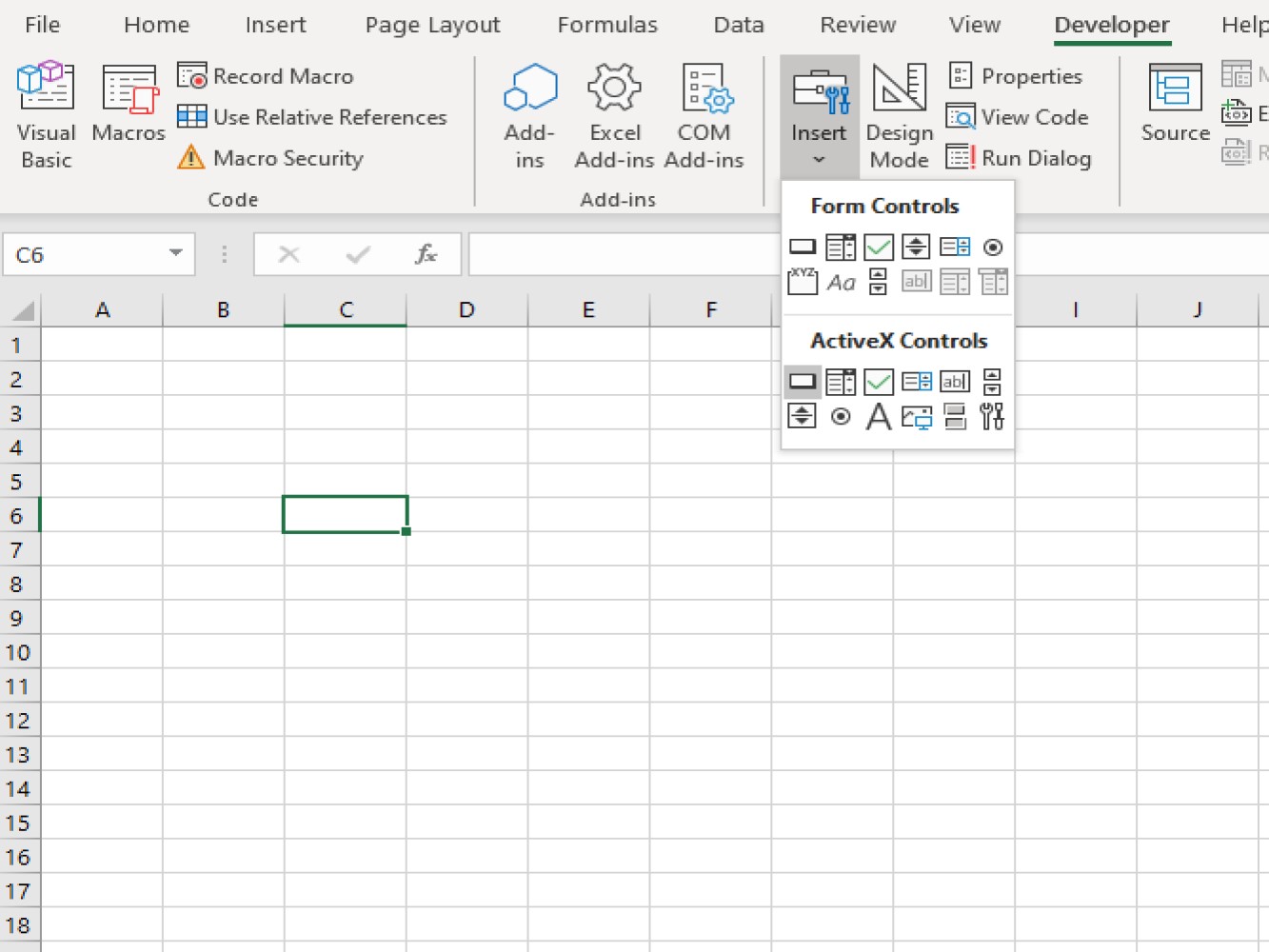
This will give you the ActiveX control button or the command button.
Creating Option Button
The Option button as the name implies lets us choose from a variety of options.
We have the same steps when creating ActiveX button, and the steps are the following:
- Go to **developers tab**.

- Then click **insert**.

- Go to **option button** under ActiveX Control.
** the options button is located on the last row, the second option.
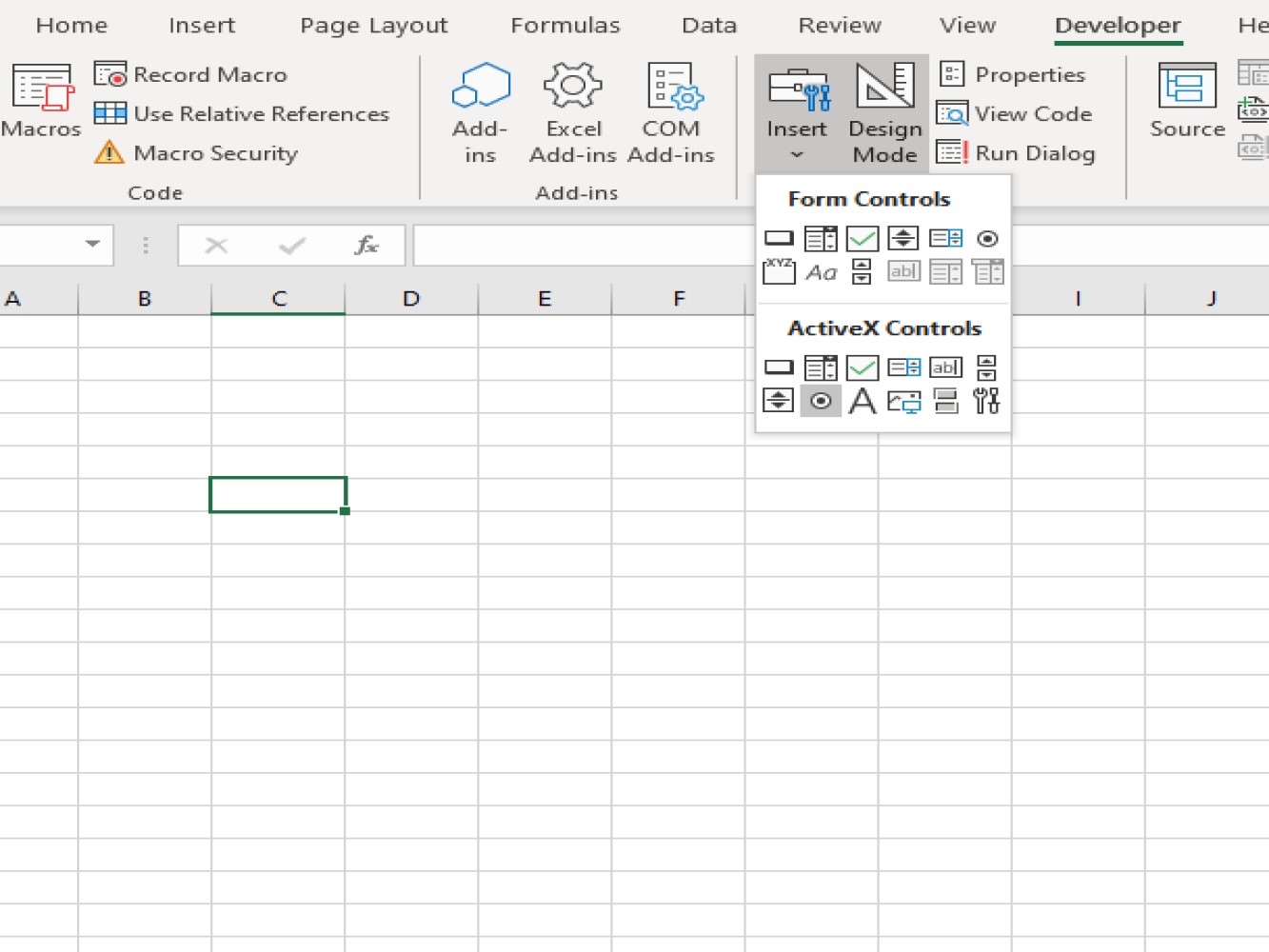
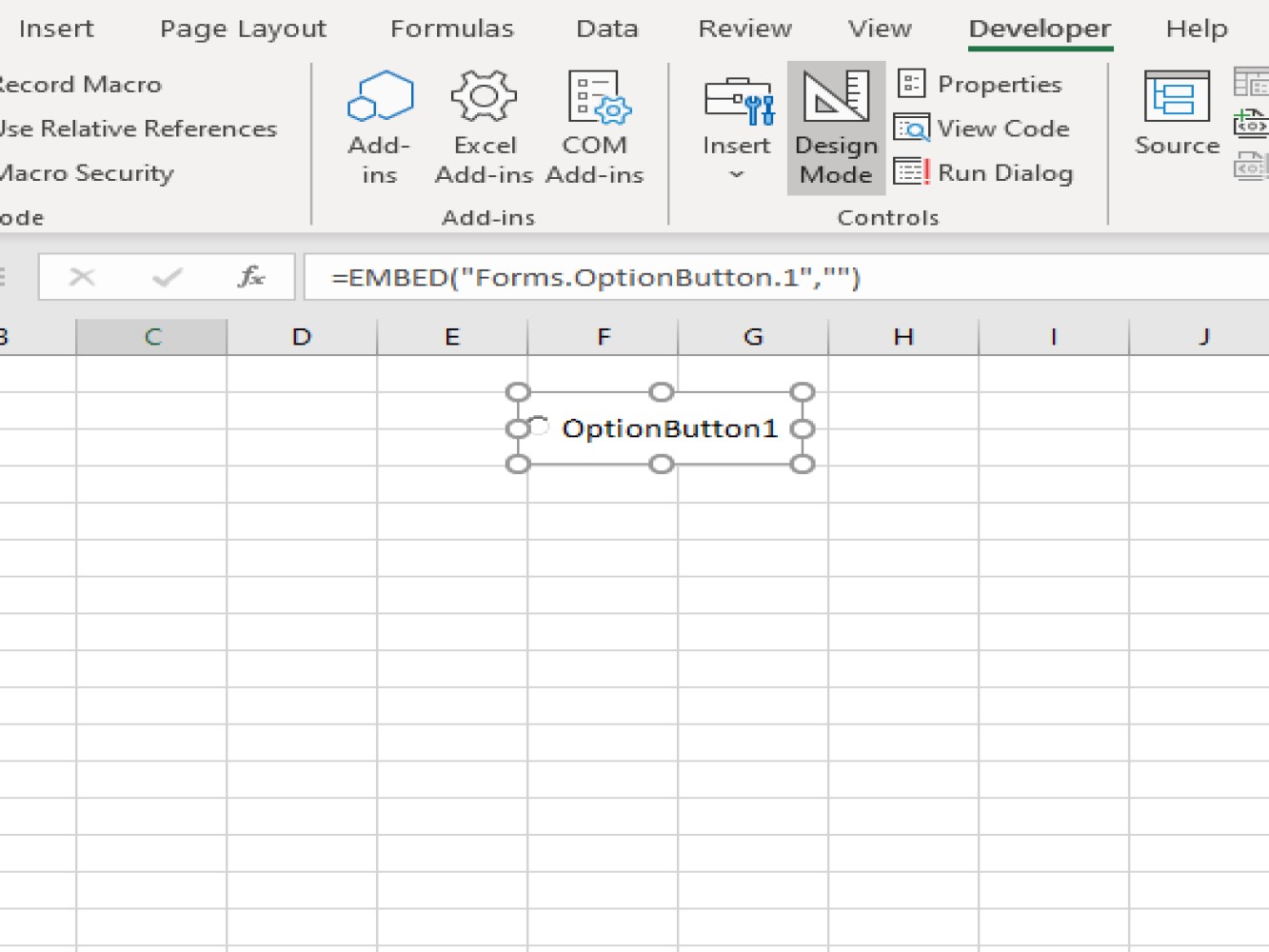
The above steps will give us the option button.
Conclusion
We have demonstrated several examples of creating different types of buttons including Shapes Button, Form Control Buttons, ActiveX Control Buttons and Option Buttons. We hope you can use all these buttons to make the most out of your Excel worksheets.