
Introduction
In this article, we will be discussing the functions and the definitions of excel VBA wait.
The Excel VBA Wait
The Wait function is similar to a sleep function. VBA created a method to wait or pause for a period of time. The method that is being used in this function is the *Application.Wait in Visual Basic for Applications. The wait function can also hold a program to a given time and allow other code to run at the same time. This makes it so that background applications can keep running while the current module waits.
Application.Wait() is the syntax being used in the wait function. And this syntax will return us a result of a Boolean value.
A Boolean value, for example, we will be having an answer of 9:00 pm tonight, the boolean value of 9:00 pm is 21:00:00
Steps on creating Wait Function
- Go to the * developers' tab* on your excel ribbon.

- Click on *Visual Basic* to open the VBA window. If the window doesn't show, manually click *view code*.

- Inside the VBA window, go to *insert*, then click *module*.

- You can now start coding by entering your sub-procedure code

- Place your integers between your sub-procedure code.
Please note that on my computer’s time is 12:50 AM
Code:
Sub example1()

Dim A, B, C As Integer
A = 20
B = 35
Application.Wait ("00:52:00")
C = A + B

MsgBox C

End Sub
Code explanation:
- Sub example1()End Sub
is our sub-procedure code
- ***`Dim A, B, C As Integer`*** - Values A, B, and C were set as our integer.

- A = 20
B = 35 C = A + B are the equal values of the integers.
- ***`Application.Wait ("00:52:00")`*** - this will indicate that we will need to wait until 12:52 AM for VBA to run the code.

- ***`MsgBox C`*** - this will set the message box to show us the return of the value C.
The result after running the code:
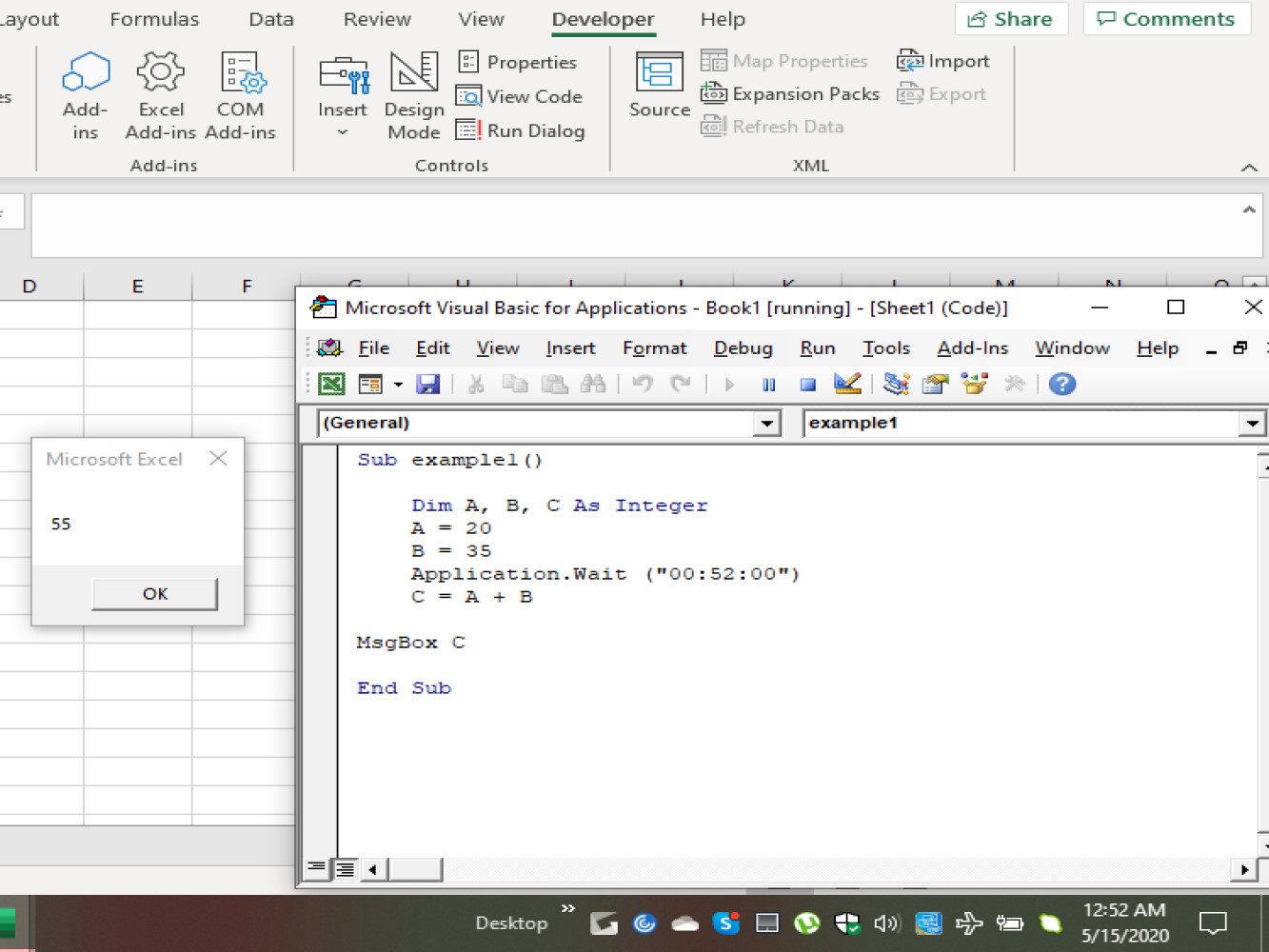
As you can see the time on my computer, on exactly 12:52 AM the message box appears with the return value of the code.
Another example:
Code:
Sub example2()

Dim A, B, C As Integer
A = 3
B = 30
MsgBox "Our Wait Time Just Started"

Application.Wait (Now + TimeValue("00:00:05"))
C = B / A
MsgBox "Our Wait Time is Officially Over"

MsgBox C

End Sub
Code explanation:
- Sub example1()End Sub
is our sub-procedure code
- ***`Dim A, B, C As Integer`*** - Values A, B, and C were set as our integers.

- A = 3
B = 30 C = B / A are the equal values of the integers.
- ***`MsgBox "Our Wait Time Just Started`"*** - this will appear immediately after running down the code.

- ***`MsgBox "Our Wait Time is Officially Over`"*** - this will appear after 5 seconds

- ***`MsgBox C`*** - the answer or the value of C will appear right after the second message showed after 5 seconds.

- ***`Application.Wait (Now + TimeValue("00:00:05"))`*** - this is indicating the waiting time for VBA to execute the code.
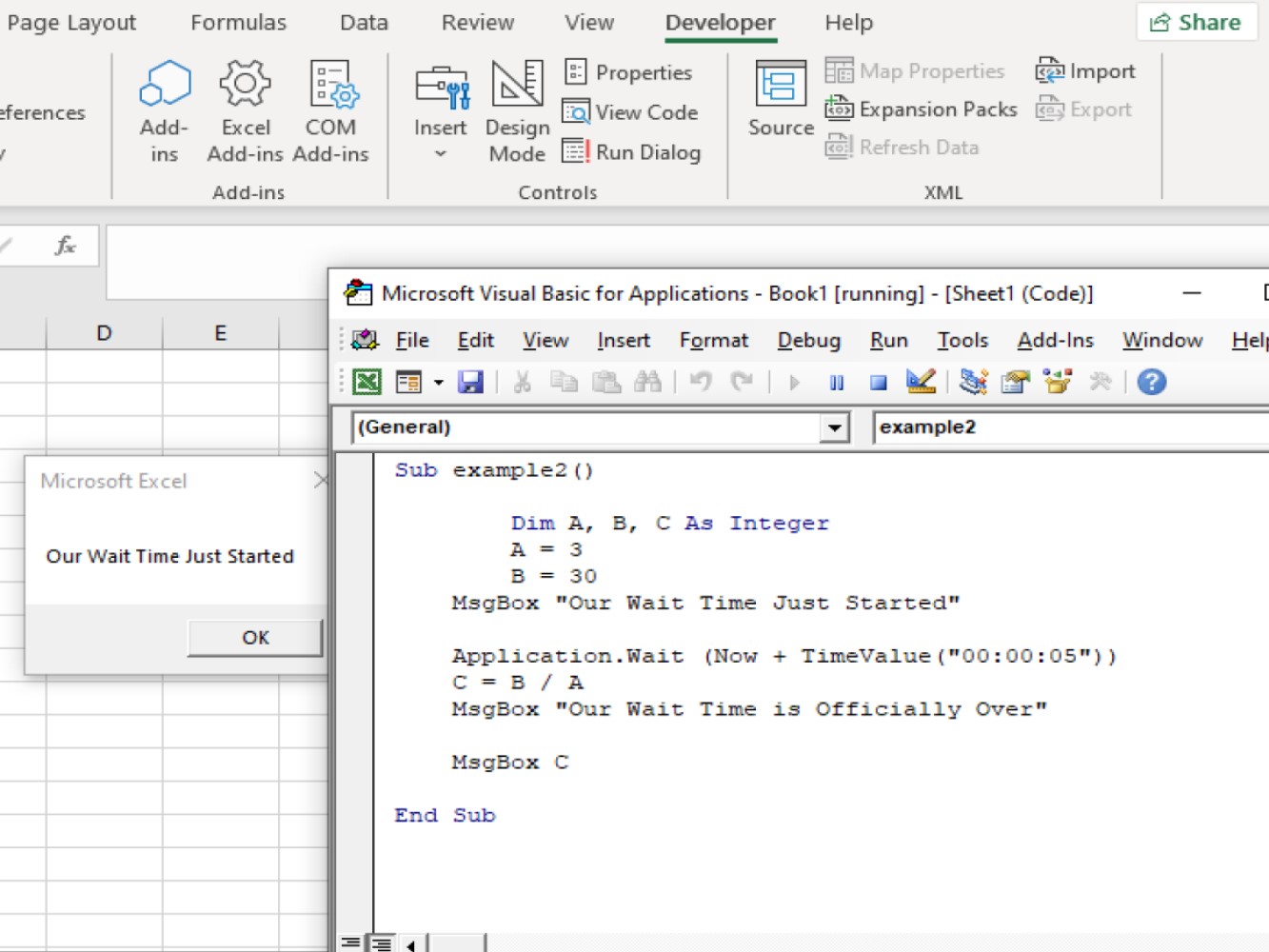
After running the code we will see the message box with our message : Our Wait Time Just Started.
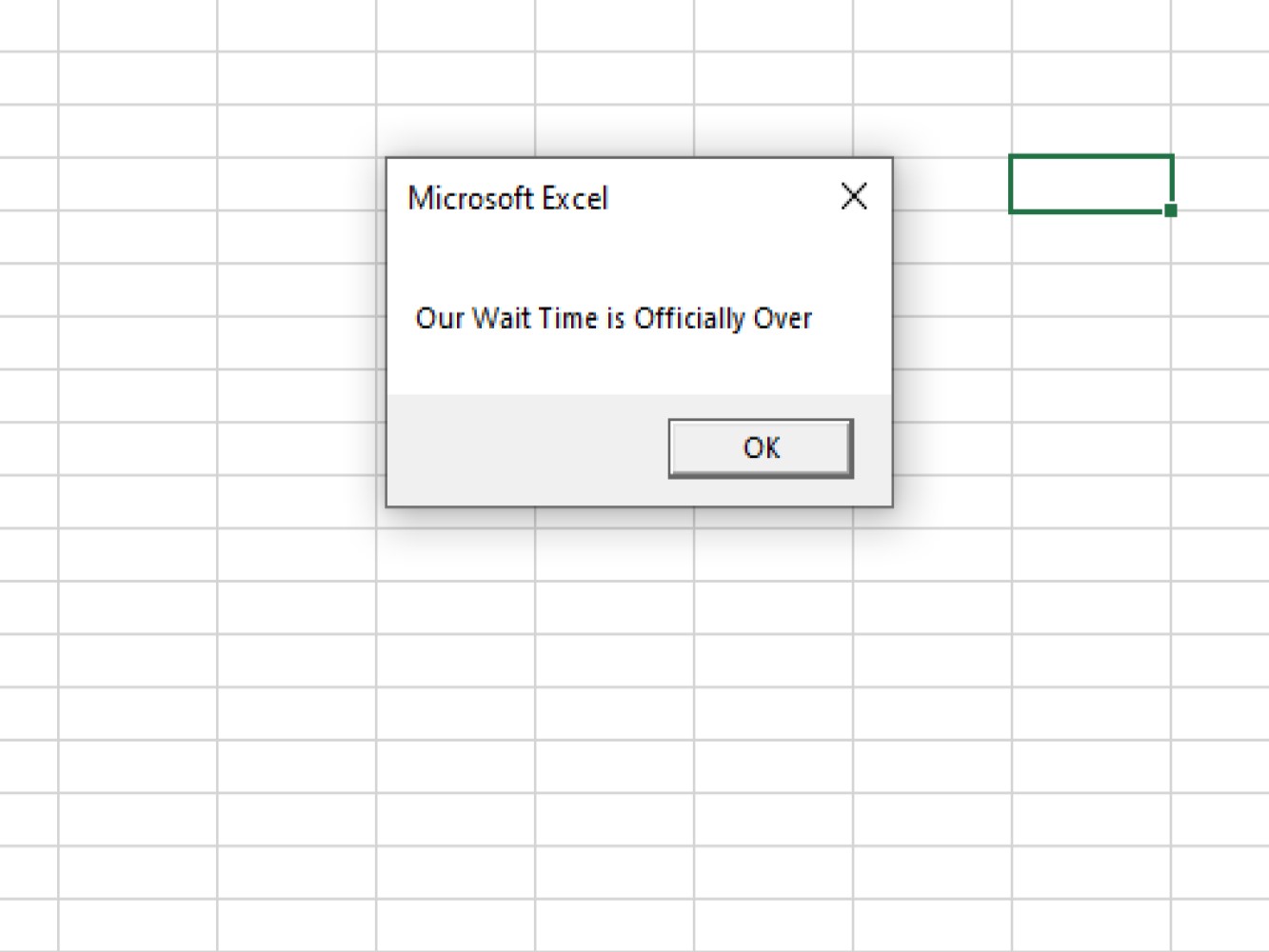
And after 5 seconds:
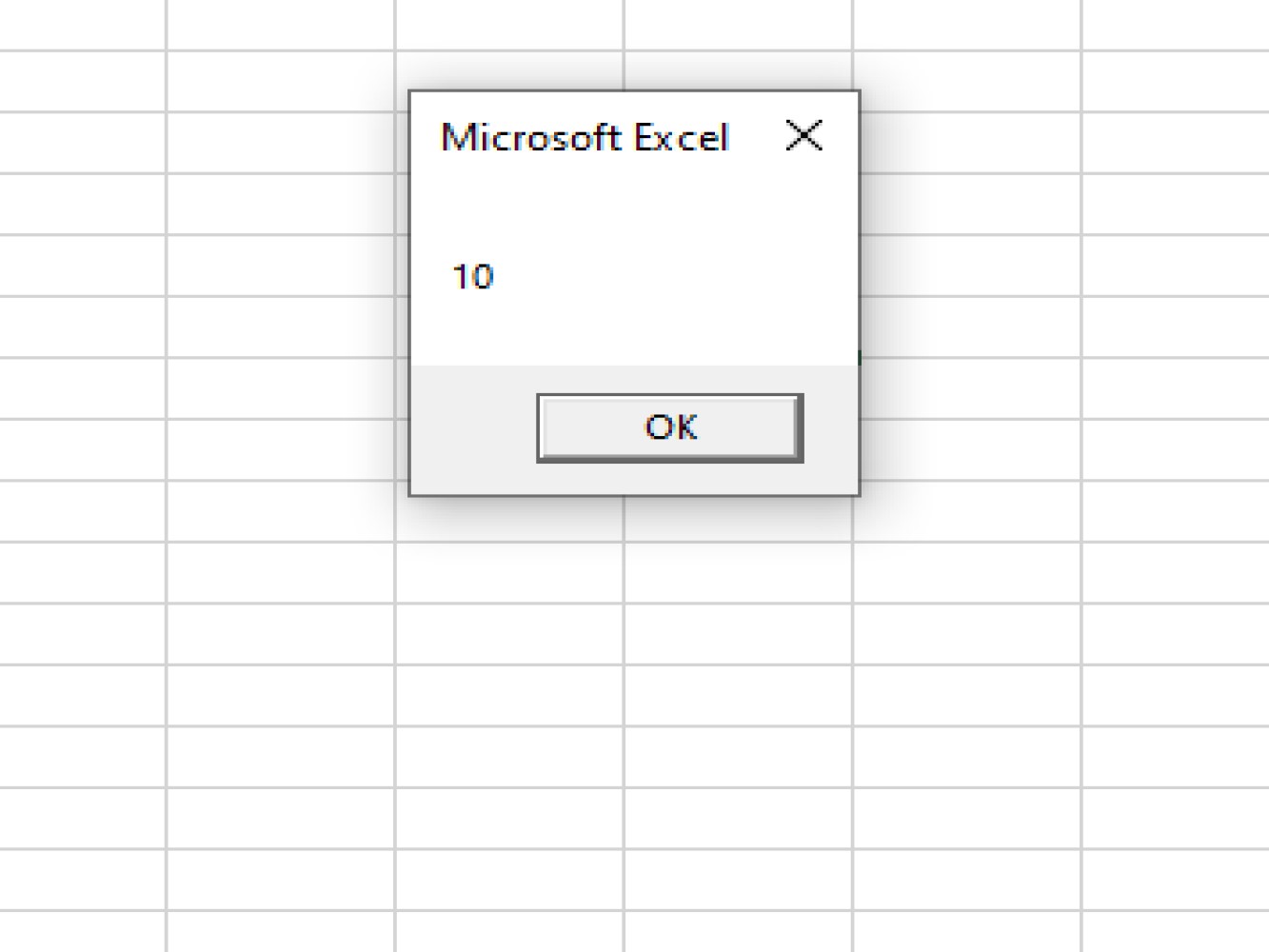
Later, another message box appears with the answer to our variables:
Conclusion
We hope that this tutorial on the Excel VBA wait functionality will come in handy in your worksheets. Waiting for a specific time for a macro to execute is a common need when working with advanced Excel worksheets and we hope you can use it to your advantage. Thanks for joining!