
Introduction
The VBA Excel Autofilter let’s us filter a range of cells in our worksheets with a desired order. Sorting is necessity in worksheets and we’ll show you how to do it in this tutorial.
The VBA Excel Autofilter
Let’s first take a look at some sample data:
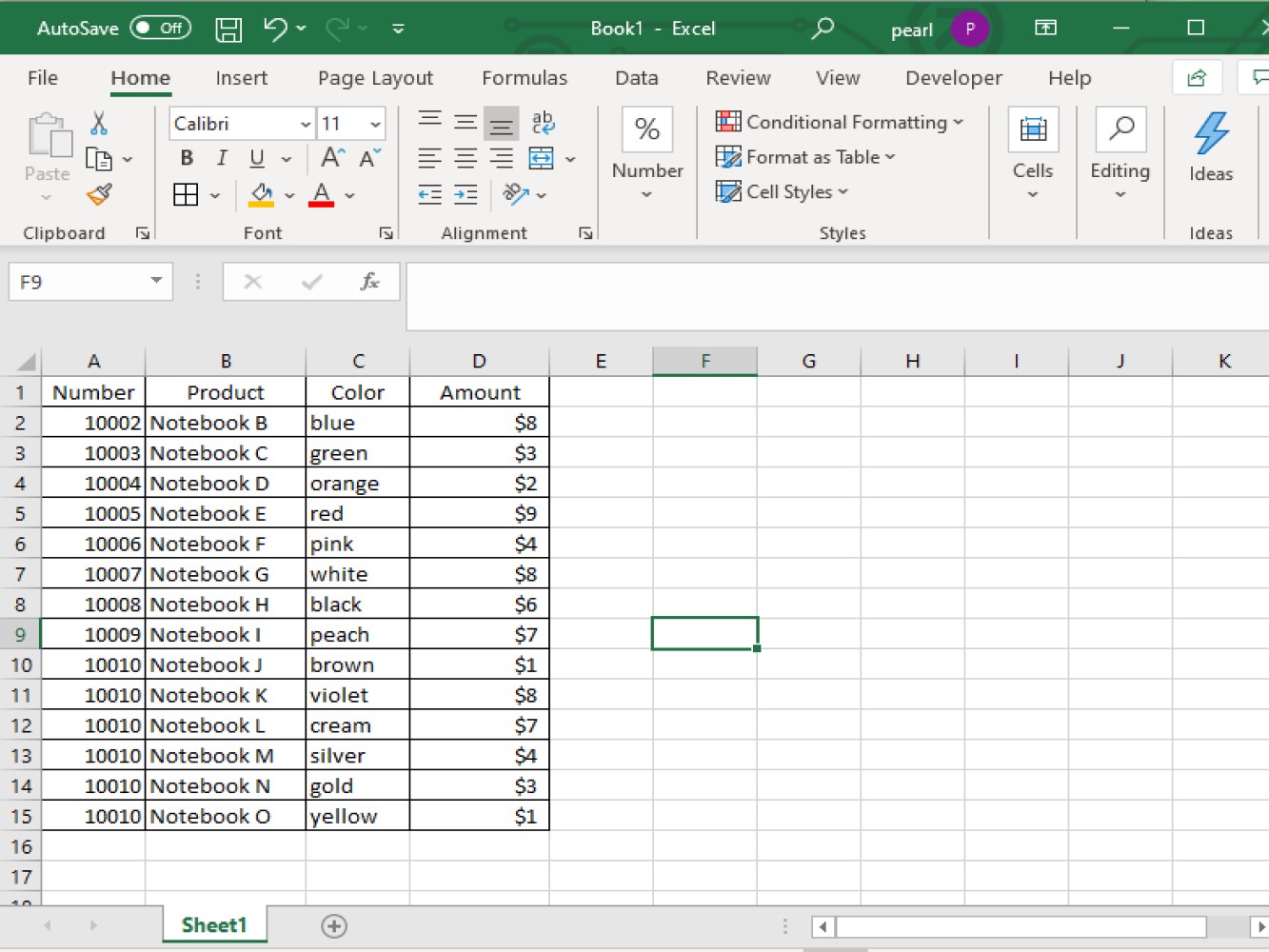
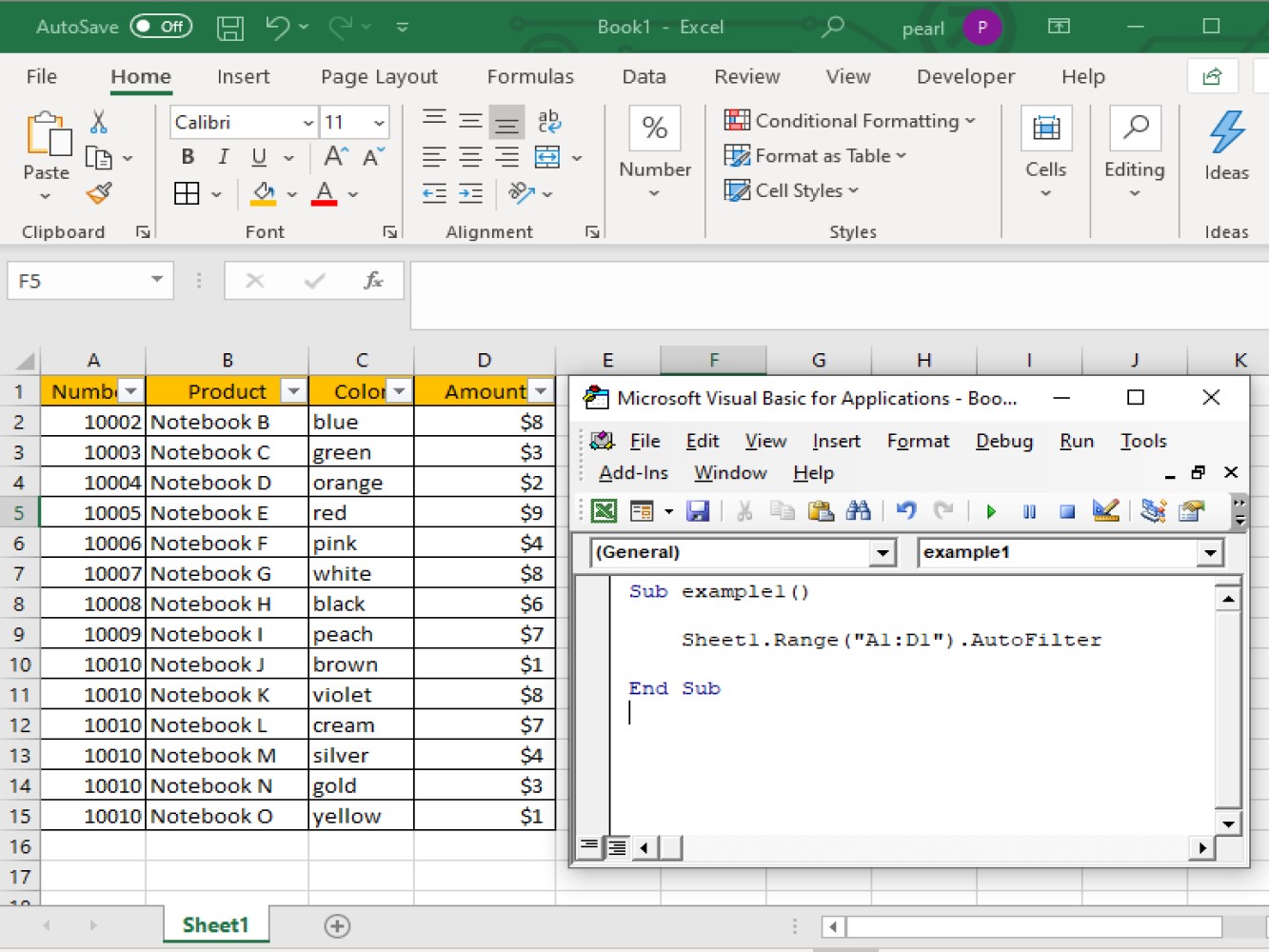
By using the code below, we can automatically put a filter on every column in the worksheet.
Code:
Sub example1()

Sheet1.Range("A1:D1").AutoFilter

End Sub
Code explanation:
- sub-procedure code:Sub example1() End Sub
- This is the range of cells that we wanted to be filtered.Sheet1.Range(“A1:D1”)
- And lastly, this is the function that we wanted to create..AutoFilter
Now let’s take a look at the result after running the code:
Auto filtering with criteria
Code:
Sub example1()

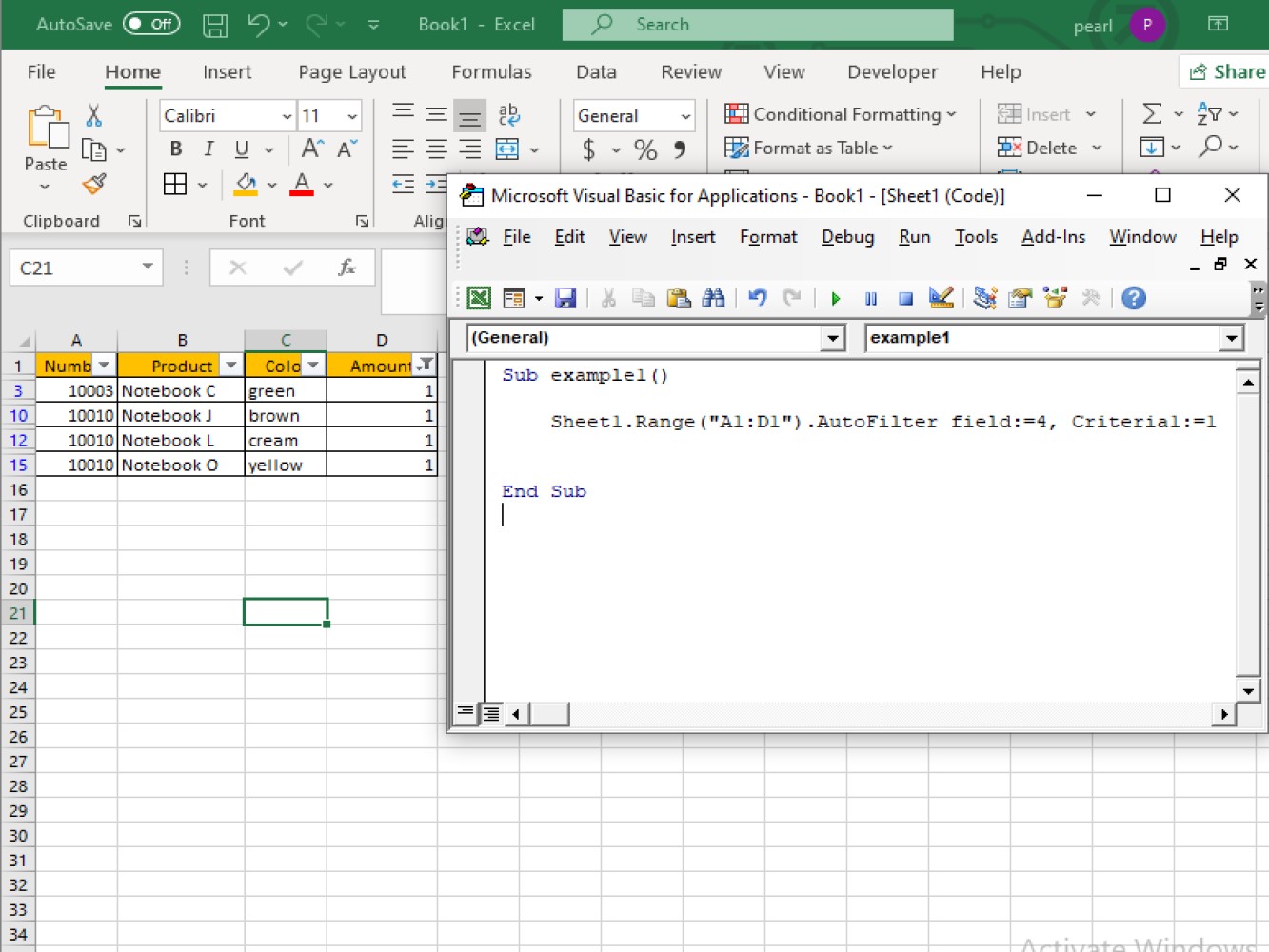
Sheet1.Range("A1:D1").AutoFilter field:=4, Criteria1:=1

End Sub
Adding to the above code:
- We need to add the column number we wish to filterfield:=4
- We also need to add the criteria of the filter. Here we will look for filter for values with a value equal to one.Criteria1:=1
Let’s take a look at the result:
Auto filtering with two or more criteria:
Code:
Sub example1()

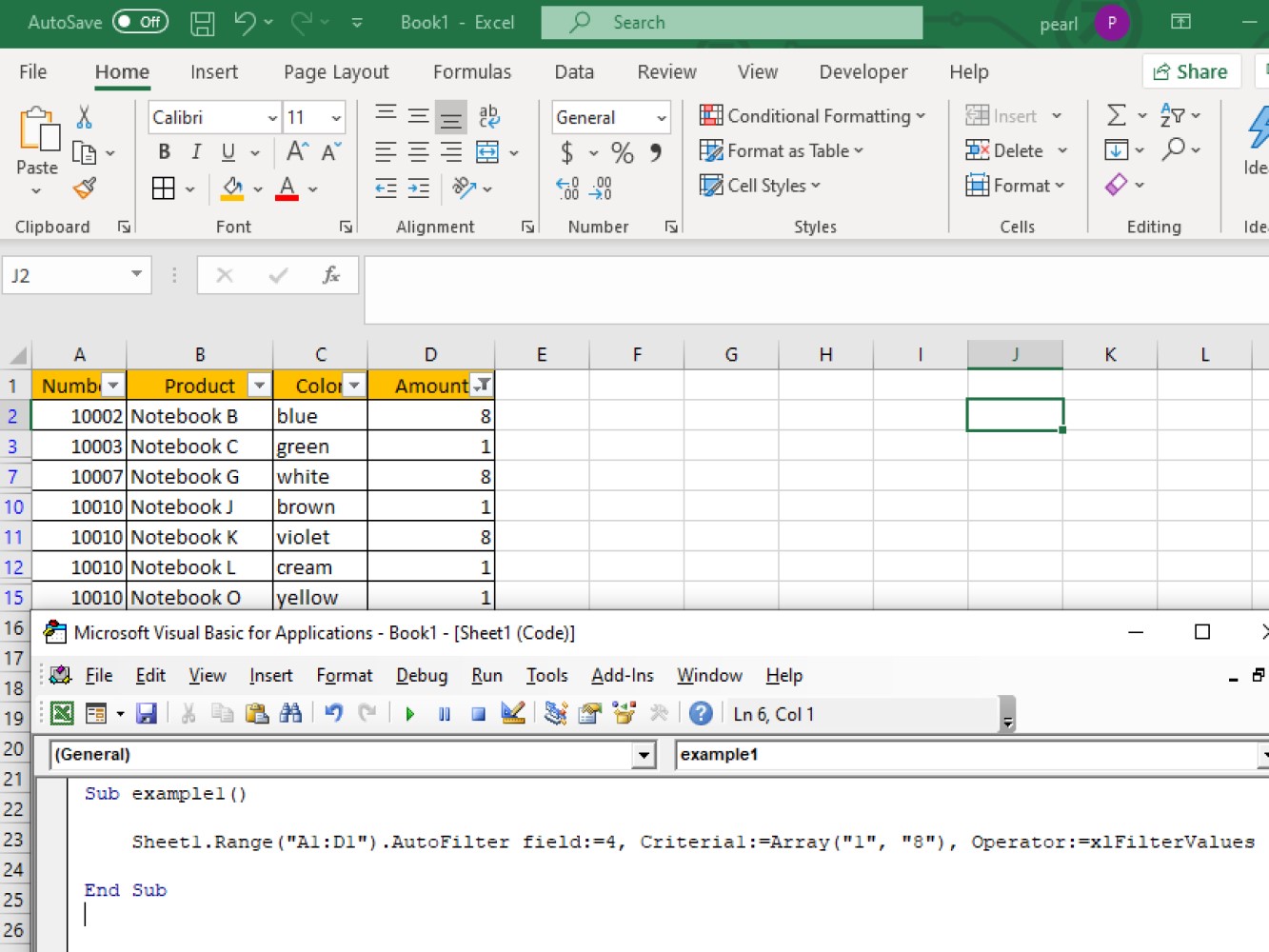
Sheet1.Range("A1:D1").AutoFilter field:=4, Criteria1:=Array("1", "8"), Operator:=xlFilterValues

End Sub
Code explanation:
- `Criteria1:=Array("1", "8")` is used to determine the two values we are looking in.

- `Operator:=xlFilterValues` is used to filter one field with more than one value.
Let’s take a look at the result:
Auto filtering with multiple criteria
Code:
Sub example1()

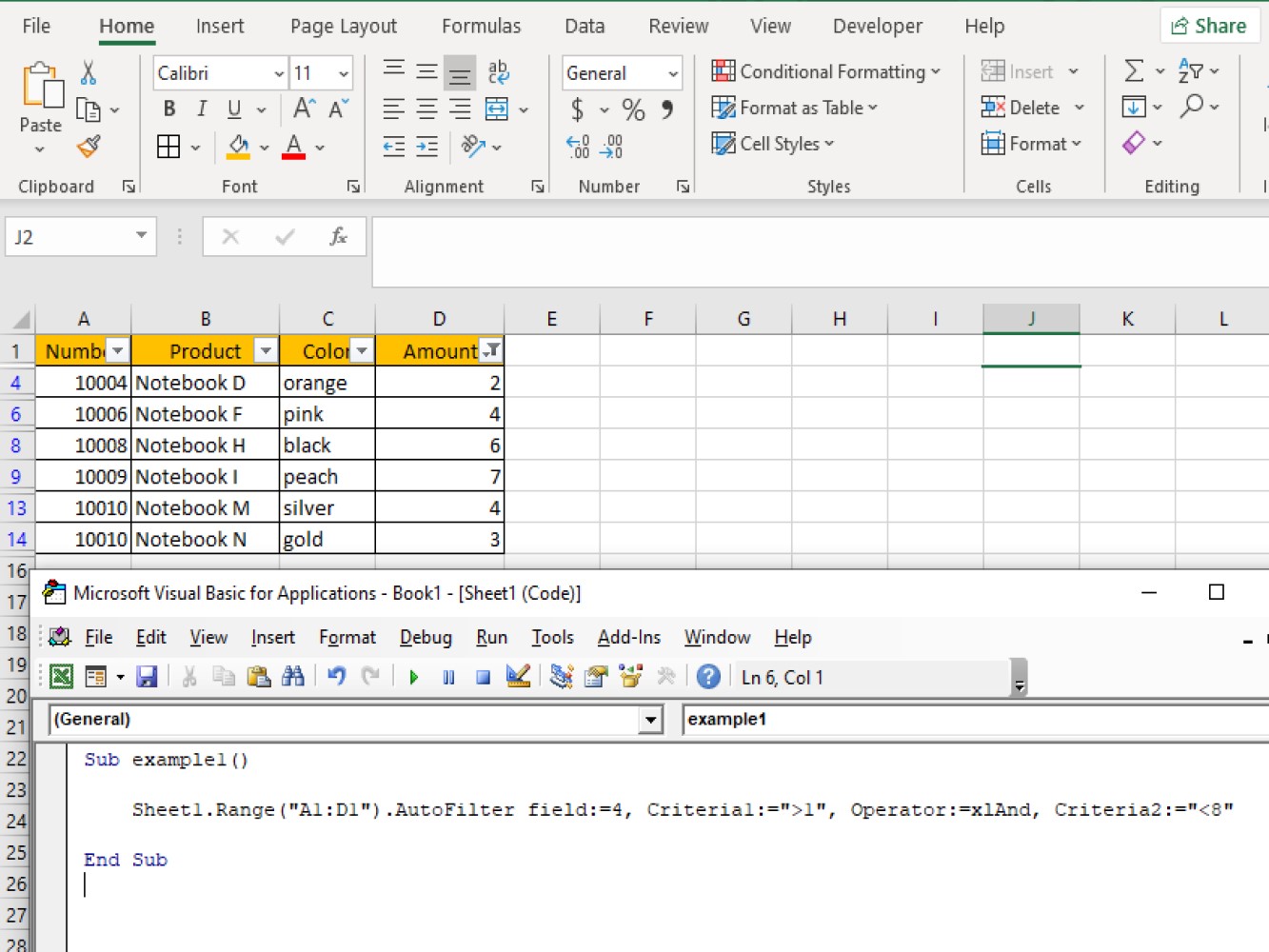
Sheet1.Range("A1:D1").AutoFilter field:=4, Criteria1:=">1", Operator:=xlAnd, Criteria2:="<8"

End Sub
Code explanation:
- Criteria1:=">1", Operator:=xlAnd, Criteria2:="<8"This refers to the values of criteria we are looking for: The first criteria state the values that are greater than 2. The second criteria state the values that are less than 8.
- Operator:=xlAnd is used to filter one field with more than one values and this includes multiple criteria.
Let’s take a look at the result:
We have seen some parameters which we have used when creating auto filtering. Let’s see more of the common parameters and its definition:
- ***`xlOr`*** - this will let you include one of the multiple criteria – Criteria1 or Criteria 2 on a range of cells.

- ***`xlTop10Items`*** - this will let you filter certain values on the highest-ranked (number specified in Criteria1) on a range of cells.

- ***`xlBottom10Items`*** - this will let you filter certain values on the lowest-ranked (number specified in Criteria1) on a range of cells.

- ***`xlTop10Percent`*** - this will let you filter certain percentage values on highest ranked (% specified in Criteria1) on a range of cells.

- ***`xlBottom10Percent`*** - this will let you filter certain percentage values on lowest-ranked (% specified in Criteria1) on a range of cells.

- ***`xlFilterValues`*** - this will include multiple criteria values with Arrays on a range of cells.

- *** `xlFilterCellColor`*** - this will let you filter cells for colors on a range of cells.

- ***`xlFilterFontColor`*** - this will let you filter cells for font colors on a range of cells.

- ***`xlFIlterIcon`*** - this will let you filter icons on a range of cells.

- ***`xlFilterDynamic`*** - this will let you filter dynamic values on a range of cells.
Conclusion
In this tutorial we’ve a shown a few examples of using VBA to AutoFilter your data in Excel. We’ve shown examples of filtering by a single criteria as well as multiple criteria. We hope you are able to apply AutoFilter to your worksheets!