
Introduction
If you’re just getting familiar with using VBA in your Excel spreadsheets then this article is perfect for you. This article shows some code samples for common use cases.
Prerequisites
- Before starting to use  VBA, you must first download and install the Microsoft Excel.

- You will also need to Enable VBA's Developer Tab in your excel by following these simple steps:

- Open *Excel* then Go to *File* then *Options*

- Go to *Customize Ribbon* then Select

- *Developer* then click *Okay*, *Developer Tab* will show then
VBA Examples
In this section, several basic codes will be explained. This will be helpful in your tasks and to minimize the time that you’ll be needing in order to accomplish those.
The VBA If statement allows you to perform some actions depending on whether a certain condition is met ( that expression evaluates to True or False). The syntax to be used is given below:
Private Sub VBAIfStatement()

If Range("B3").Value >10 Then Range ("C3").Value = "Positive"

End Sub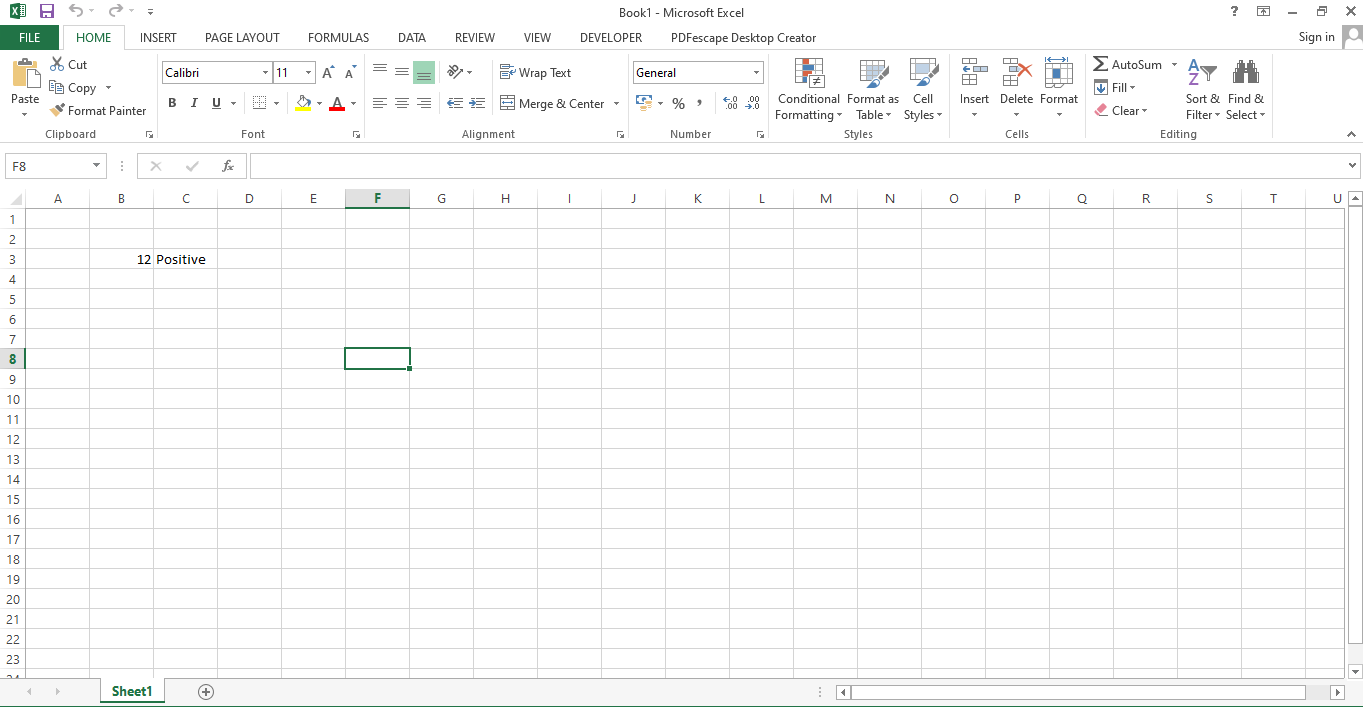
The Else If Statement, on the other hand, runs if the encoded statement does not meet the given standards. The syntax for this is:
Private Sub VBAElseIfStatement()

If Range("B3").Value >10 Then Range ("C4").Value = "Negative"

End Sub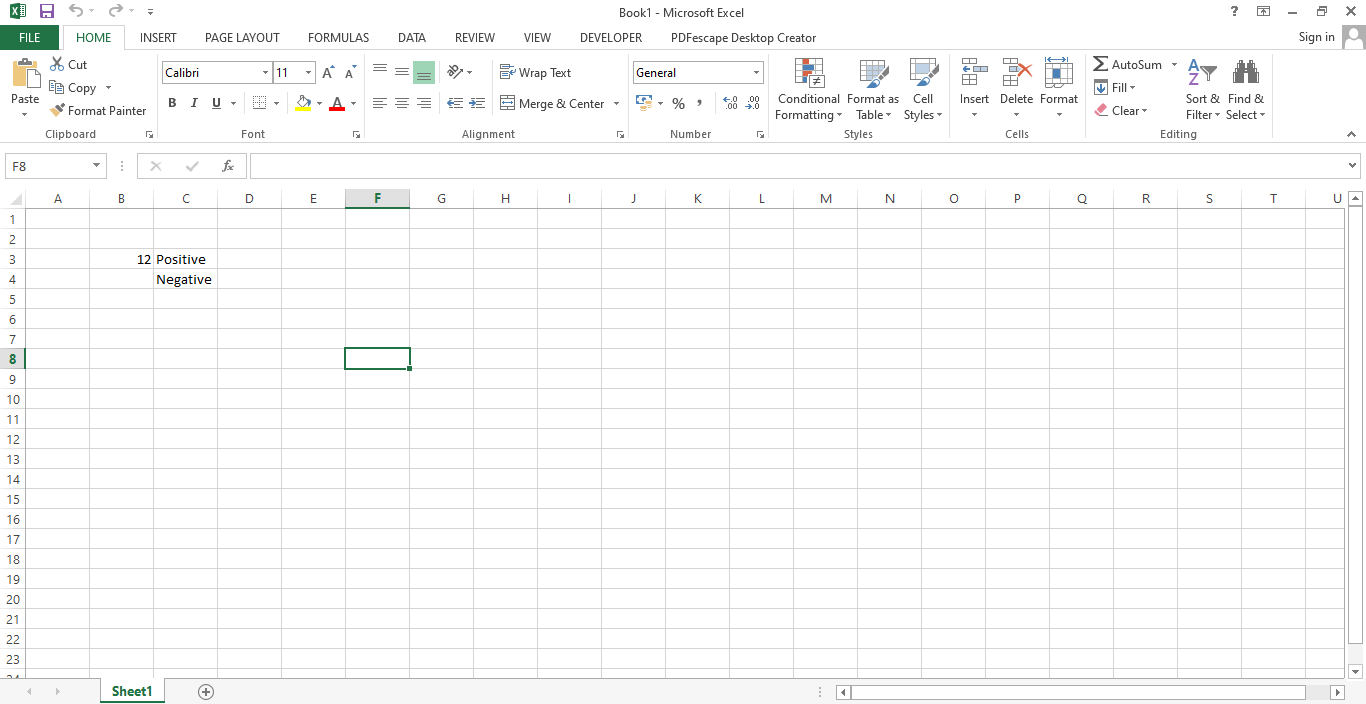
The Save command in VBA Excel enables us to save the file made. This can also be done with the use of the Ctrl + S. In order to execute the command, follow the code below :
Private Sub SaveCommand()

Dim work As Workbook
For Each work In Application.Workbooks
work.save
Next work

End Sub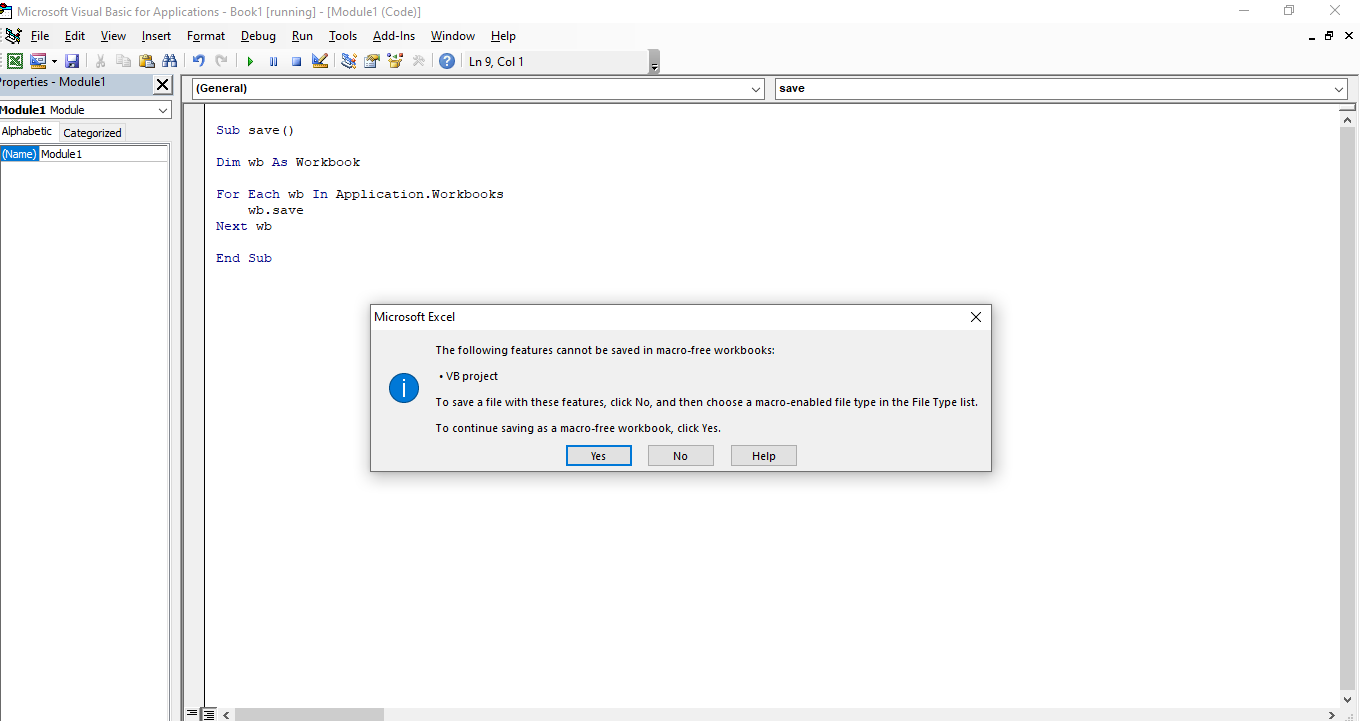
Range and Cells
The Select Range Cells Command enables you to select a cell or a range of cells in your worksheet. You can do this through the use of the Select Method. This method is a time saver especially when you’re working with a large set of data and numerous files. Follow the code bellow in order to execute the action:
Sub selectcell()
Range("A1").Select
End Sub
To select a range of cells follow and the code below:
Sub selectrangecell()
Range("A4, B6, D7, F8").Select
End Sub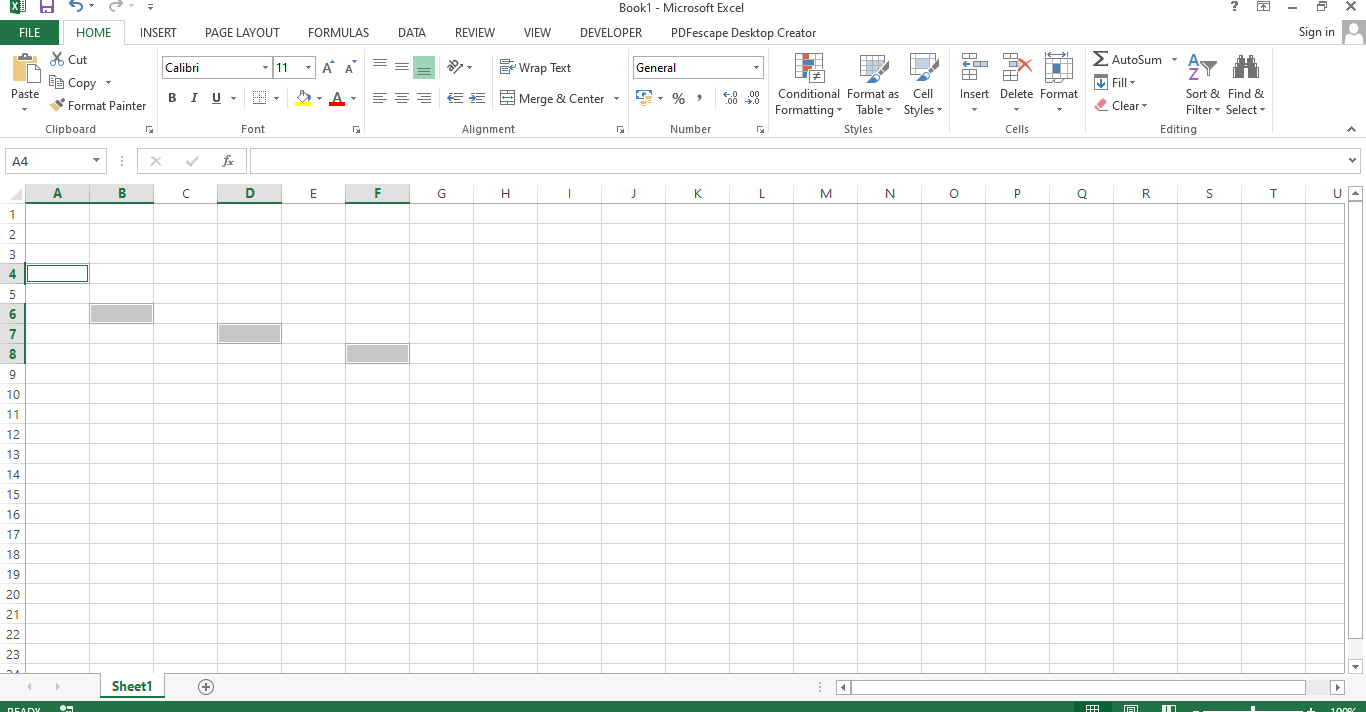
The Merge Cells Command enables you to merge cells using VBA. In order to execute this action follow the code below:
Sub MergeCells()
Range("A4:A10").Merge
Range("B4:B10").Merge
End Sub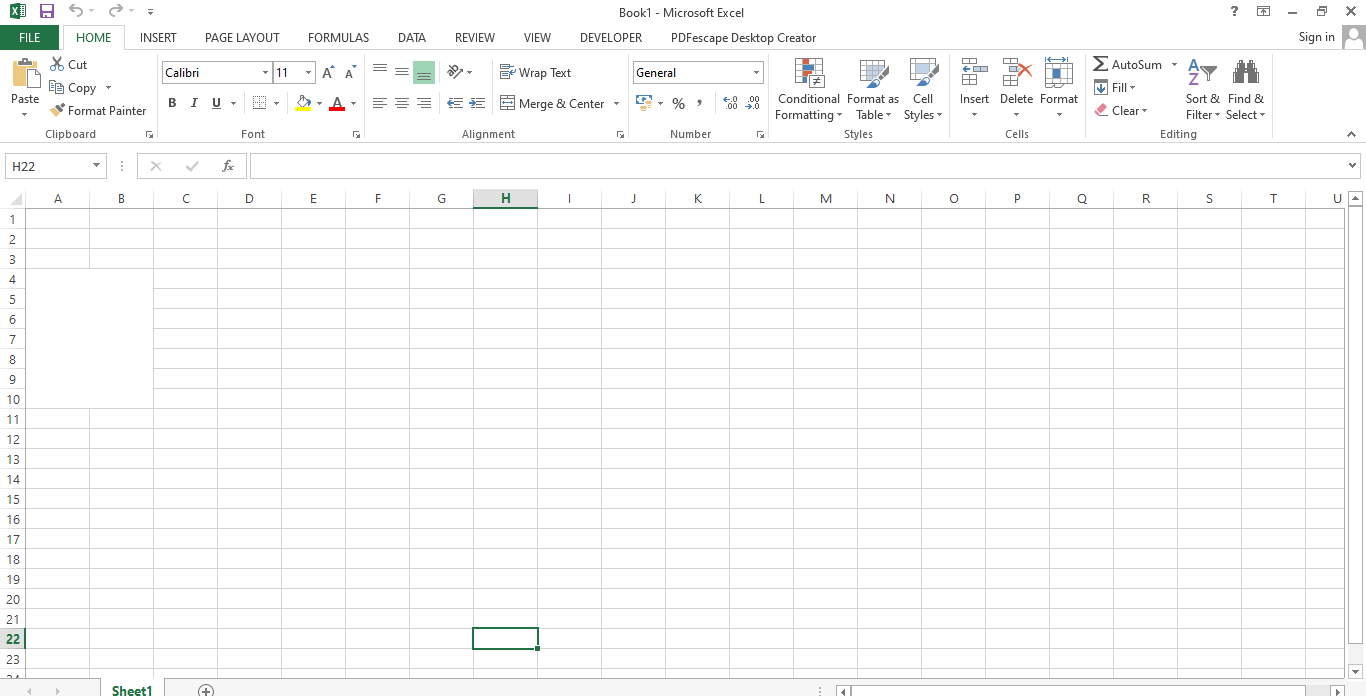
In order to unmerge the cells, you can use the Unmerge Method in VBA. Enter the code below to execute the action:
Sub MergeCells()

Range("A4:A10").UnMerge
Range("B4:B10").UnMerge

End Sub
If you want to make the text that you entered in a cell bold you can use the Font.Bold Method. Enter the code below to see it in action:
Sub BoldFont()

Range("B2").Font.Bold = True

End Sub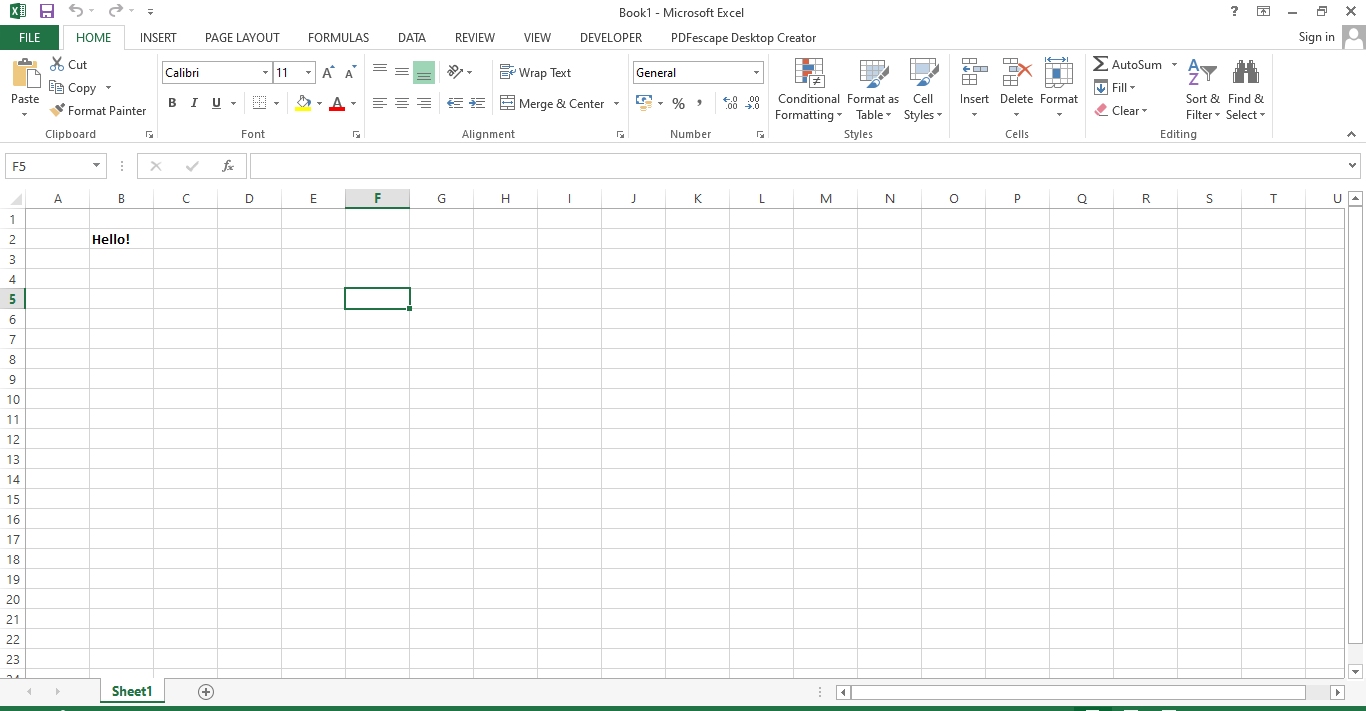
Conclusion
In this article we’ve demonstrated some common use cases for using VBA and the code that was used in that instance. We showed how to merge cells, unmerge cells, bolden text, save a worksheet, and use if statements. These are great building blocks which we hope you can use to build more efficient and effective Excel worksheets. Thanks for joining another one of our tutorials on Excel and VBA.